Summary
Safe Pathways can connect to Planning Center to keep your people list and key identity details consistent across systems. In Safe Pathways, imported identity fields are read-only so admins and volunteers don’t accidentally create mismatches.
Who this is for
- Church Administrators (Admins)
What you’ll need
- Admin access (you can see “Settings” in the left-side menu).
- Planning Center admin credentials with permission to connect integrations. TODO: confirm exact required permission level in Planning Center.
Steps
- Select “Settings” in the left-side menu.
- Open the “Integrations” tab.
- Find the “Planning Center” integration card/section and confirm it shows your Customer ID (or OAuth)
-
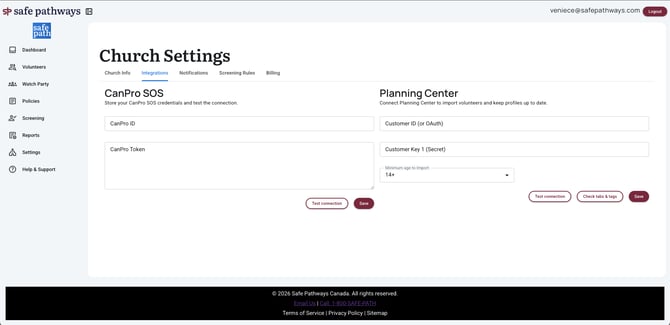
- If it is Disconnected, select the Connect/Manage action and complete the Planning Center authorization steps.
- Confirm what syncs into Safe Pathways (identity details): First name, Last name, Email, Phone number. (These are the fields shown as imported/read-only in Safe Pathways.)
- Volunteer side: the “Account” fields are greyed out with the message “You can only change your account information on your church’s Planning Center.” (Reset password still works.)Confirm what becomes read-only in Safe Pathways when Planning Center is connected.
- Admin side: in “Volunteer Profile”, the “Volunteer Info” section is read-only and may show helper text like “Imported from Planning Center.”
- Confirm how this affects adding people: when Planning Center is connected, Safe Pathways should pull from the Planning Center church database and may hide manual add flows inside Assign Pathway.
What happens next
Once connected, use Safe Pathways to assign pathways, collect policy acknowledgement, and track screening tasks—while keeping identity details consistent through Planning Center.
Troubleshooting
- If Volunteer “Account” is read-only and someone needs to change their email or phone number, update it in Planning Center and wait for the sync. TODO: confirm sync timing.
- If you see duplicates (same person twice), check for multiple records in Planning Center with different emails or spellings.
- If you can’t connect, confirm the Planning Center account you’re using has permission to manage integrations.