
Summary
You can connect Safe Pathways to Canpro SOS by providing two credentials from your Canpro SOS account:
- API Token
- Account ID
These credentials are entered in Church Settings > Integrations in Safe Pathways so the two systems can communicate.
Who this is for
- Church administrators
- Account owners
- Anyone with access to Church Settings in Safe Pathways and admin access in Canpro SOS
What you’ll need
Before you begin, make sure you have:
- A Canpro SOS church account, or are ready to request one
- Admin access to your Canpro SOS account
- Access to Church Settings in Safe Pathways
Before you start
Before connecting Canpro SOS to Safe Pathways, complete the Canpro SOS setup form: https://wkf.ms/4sBpaWc
This form helps the Canpro SOS team determine whether your church already has an SOS account or needs help setting one up. If you already have an account, their team can also help you locate the API Token and Account ID needed for the integration. The live article already includes this form link and referral-code instruction.
Important onboarding note
Churches need to open an account directly with Canpro SOS before the integration can be completed.
After the church submits the form, Canpro SOS will review the request, confirm whether an account already exists, and help with account setup if needed.
Expected setup timeline
Once the church has decided to move forward, signed any required proposal, and provided the necessary account details, the Canpro SOS team can typically set up the account within 1 business day.
In practice, delays usually happen when the church has not yet:
- signed the proposal
- submitted complete account details
- provided accurate setup information
For churches that move quickly, onboarding may be completed within 48-72 hours, but the total timeline depends on how quickly the church returns the required information.
Steps to connect Canpro SOS to Safe Pathways
1. Complete the Canpro SOS setup form
Start by submitting the Canpro SOS setup form:
https://wkf.ms/4sBpaWc
2. Open the root account in Canpro SOS
After registering and signing in: 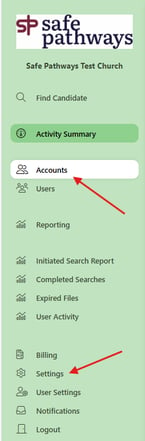
-
-
-
-
In the left-side menu, click Accounts
-
This will take you to your root account
-
Then click Settings near the bottom of the menu
-
-
-
3. Open API Access
From the Settings page, select API Access from the top tab menu.

4. Create a new API token
On the API Access page:

-
Click New API Token
-
Copy the token that is generated. (This token will be a long string of characters)
This is the first value you will need for Safe Pathways.
5. Find your Account ID
To locate your Account ID:
-
Click Accounts again in the left-side menu
-
In the middle of the page, find your church name under the Account list
-
Click on your church name
The next screen will show your files and their statuses.
6. Copy the Account ID from the URL
Once you are on your church account page, look at the URL in your browser’s address bar.
Copy everything after the last Account/ in the URL.
Example:
https://test.secureonlinescreening.ca/Client/Account/a7c6b159-c419-461c-5779-08de25f80456
In this example, the Account ID is:
a7c6b159-c419-461c-5779-08de25f80456
This is the second value you will need for Safe Pathways.
7. Enter the Canpro SOS credentials in Safe Pathways
In Safe Pathways:
-
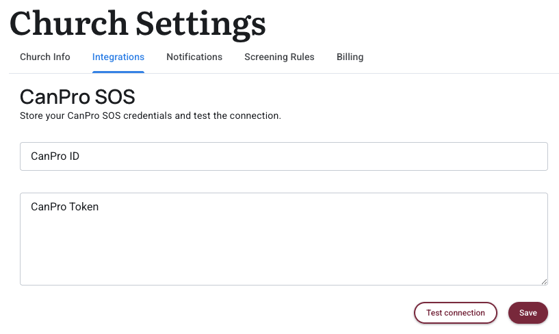
Go to Church Settings
-
Open the Integrations tab
-
Paste in your API Token and Account ID
8. Save your settings
After entering both values, click Save to complete the integration.
What happens next
Once the credentials are saved, Safe Pathways will be able to communicate with your Canpro SOS account using the integration settings you entered.
If your church has not yet finished account setup with Canpro SOS, you may need to wait until their team completes the account and provides the required integration information.
Troubleshooting
I cannot find API Access
-
-
Make sure you are in the root account and have opened Settings from the left-side menu.
-
My API token is not working
-
-
Try generating a new API token in Canpro SOS and copying it again carefully into Safe Pathways.
-
I am not sure what my Account ID is
-
-
Your Account ID is the portion of the URL that appears after
Account/when you open your church account page.
-
The integration is not saving
-
-
Double-check that both the API Token and Account ID were pasted correctly and that there are no extra spaces before or after the values.
-
Notes
-
The API token is created in Settings > API Access in Canpro SOS
-
The Account ID is pulled from the URL of your church account page
-
Both values must be entered into the Integrations tab in Church Settings in Safe Pathways