
Where to find it
The Policy Acknowledgement page is found in the Church Policies section of your Admin Dashboard. Once there, use the Policy to edit dropdown to select which of your church's policies you want to configure questions for. Each policy has its own independent set of questions, changes to one policy's questions don't affect others.
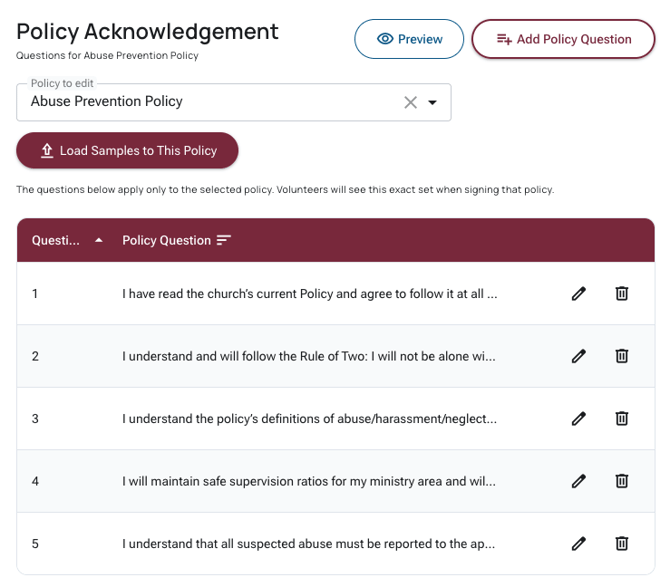
The subtitle beneath the page title ("Questions for [Policy Name]") updates to reflect whichever policy is selected in the dropdown, confirming you're editing the right set of questions. Below the dropdown, a note reads: "The questions below apply only to the selected policy. Volunteers will see this exact set when signing that policy."
The default sample questions
Every church account comes pre-loaded with five sample policy acknowledgement questions. These are available to all churches and represent a solid baseline of safeguarding commitments. They are:
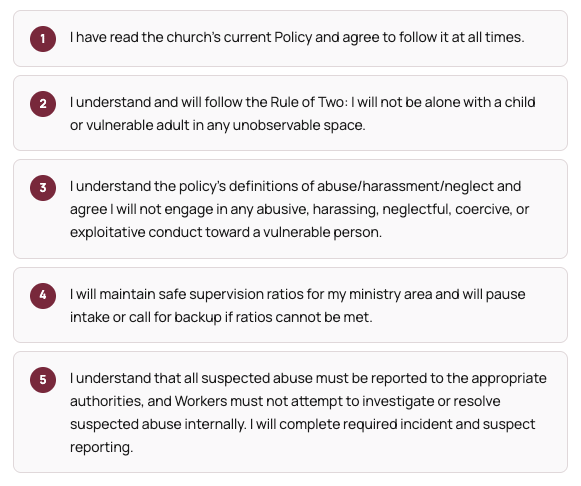 To load these samples onto a policy that doesn't have them yet, select the policy in the dropdown and click Load Samples to This Policy. This is useful if you've deleted questions and want to start fresh from the defaults.
Editing an existing question
To edit a question, click the pencil icon on the right side of that question's row. The row expands inline, the question text becomes an editable text area. Make your changes, then click the green confirm button to save, or the grey × button to discard and close without saving.
Adding a new question
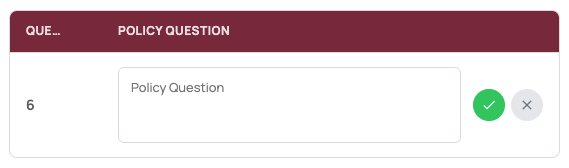
To add a question that isn't in the existing list, click Add Policy Question in the top-right corner of the page. A new blank row appears at the bottom of the list with a text area labelled Policy Question and the next sequential number pre-filled. Type your question, then click the green confirm button to save it. Click × to cancel without adding.
Deleting a question
Click the trash icon on the right side of any question row to delete it. The question is removed immediately, there is no confirmation prompt, so take care before deleting, particularly with questions that reference specific policy commitments.
⚠️ Deleting a question
Deleting a question cannot be undone from the interface. If you delete a question by mistake, you'll need to re-add it manually. For sample questions, you can use Load Samples to This Policy to restore them, then remove any duplicates.
Previewing what volunteers will see
Click the Preview button in the top-right corner of the page to see exactly what volunteers will be presented with when they sign this policy. Use Preview after making any changes to confirm the questions read clearly and are in the right order before volunteers encounter them.
Volunteers must actively acknowledge each question when signing, they don't just read the policy document. Make sure every question is written as a clear first-person commitment they can meaningfully agree to.
Writing effective acknowledgement questions
Policy acknowledgement questions work best when they're specific, actionable, and written in the first person. Keep these principles in mind:
- Write as commitments, not confirmations. "I will maintain safe supervision ratios…" is stronger than "I understand that supervision ratios are important."
- Reference specific policy language. Tying questions to named sections or defined terms in your policy (e.g. "the Rule of Two," "the definitions of abuse/neglect") reinforces the connection between the document and the acknowledgement.
- Keep each question to a single commitment. Avoid combining two unrelated obligations in one question, if a volunteer disagrees with part of it, there's no way to indicate that granularity.
- Use plain language. Write for a volunteer with no legal or safeguarding background. Avoid jargon unless you define it in the question itself.
- Preview before publishing. Always use the Preview button after editing to confirm the final set reads naturally from start to finish.
Frequently Asked Questions
Can I have different questions for different policies?
Yes. Each policy has its own independent set of questions. Use the Policy to edit dropdown to switch between policies and configure each one separately.
What happens if I have no questions set for a policy?
If a policy has no acknowledgement questions, volunteers will still be asked to acknowledge the policy document itself, but no specific statements will appear for them to agree to. It's strongly recommended to have at least the default sample questions in place for any active policy.
Last Reviewed
May 17, 2026