
Summary
Safe Pathways lets you build an admin team where each person has exactly the access their role needs. This article covers inviting an administrator, choosing their clearance level, editing their access, and suspending or reinstating an account.
Who this is for
- Account Owners
- Church Administrators with permission to manage admin users
What you’ll need
Make sure you have:
- Admin access with permission to manage admin users
- The new administrator’s name and email address
Before you start
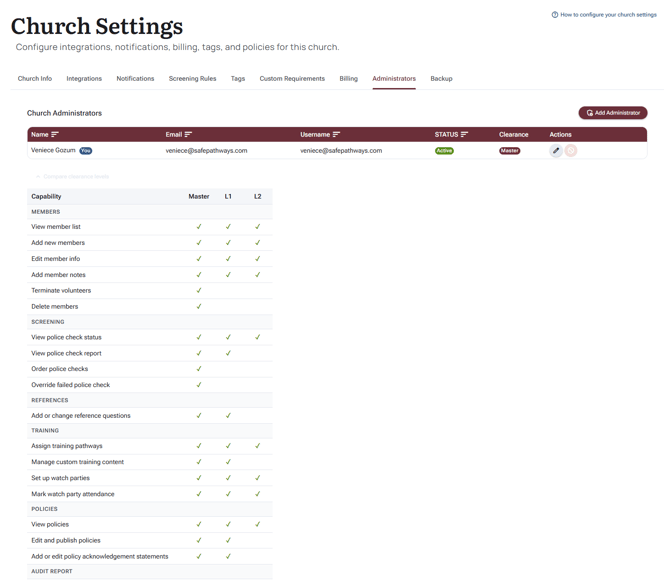
The admin team lives in Settings, on the Administrators tab. Each administrator carries a clearance level shown as a badge:
- Master: the standard full church administrator. Everything, including billing, integrations, and managing the admin team itself.
- L1: day-to-day management. Members, screening status and reports, references, training, policies, imports, and configuration, but not billing, integrations, or the admin team.
- L2: front-line help. The member list, screening status, assigning training, watch parties, viewing policies, and tags.
- Custom: a hand-picked set of capabilities for anything in between.
A word on least privilege: give each person the narrowest level that covers their actual job, and keep the Master circle small. The fewer people who can change billing, integrations, and the admin team, the safer the account. The capability comparison table at the bottom of the Administrators tab shows exactly what each level allows, so you never have to guess.
Steps to invite an administrator
1. Open Settings and the Administrators tab
Select Settings in the left menu, then the Administrators tab. The grid lists your current team with each person’s status and clearance.
2. Select Add Administrator
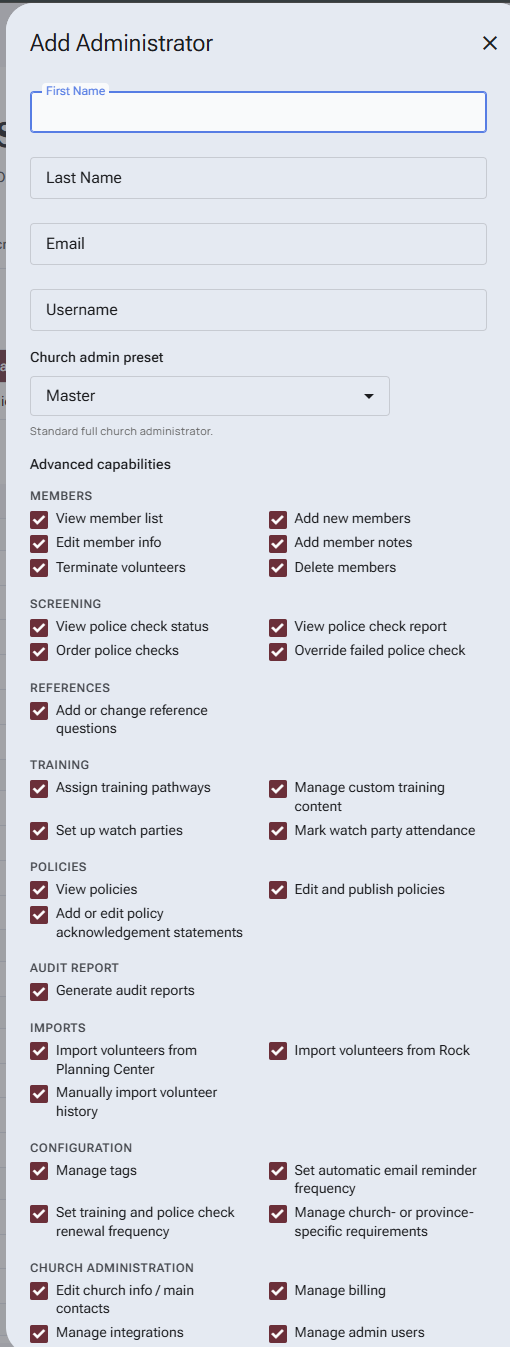
The invitation dialog opens.
3. Enter their details
First name, last name, and email are required. The username is optional; leave it blank and Safe Pathways generates one.
4. Choose their clearance
Pick the preset that matches their role. The dialog starts on Master, so choose deliberately rather than accepting the default; most team members fit L1 or L2.
5. Select Add Administrator
Safe Pathways creates the account and emails the new administrator a link to set their own password. Nobody ever needs to share or know anyone else’s password.
What happens next
The new administrator appears in the grid as Active once set up, with a “You” badge marking your own row. From the Actions column you can:
- Edit: update their details or adjust their clearance and capabilities.
- Suspend: opens a dialog asking you to confirm; suspension takes effect immediately and they cannot sign in until reinstated. A reason field is optional.
- Reinstate: restores a suspended administrator’s access.
Two safety rails are built in: you cannot suspend yourself, and you cannot suspend the last active administrator, so the account is never left with no one at the wheel.
Troubleshooting
The new administrator never received their email
- Ask them to check spam and junk for an email from a safepathways.com address.
- Confirm the email address on their row is correct; edit it if not.
- They can also use “Forgot password?” at app.safepathways.com, which sends a fresh link to set a password.
The Suspend button is greyed out
- You cannot suspend yourself or the last active administrator. Add or reinstate another admin first.
An administrator can’t see a page they need
- Their clearance does not include that capability. Check the comparison table on the Administrators tab, then Edit their access.
I got a “username already in use” message
- Leave the username blank and Safe Pathways will generate a unique one, or choose a different username.
Notes
- Clearance levels: Master (everything), L1 (day-to-day management), L2 (front-line help), Custom (hand-picked).
- The invitation dialog defaults to Master; pick the narrowest level that fits the job.
- New administrators set their own password through an email link.
- Suspension is immediate and reversible with Reinstate.
- You cannot suspend yourself or the last active administrator.
- The capability comparison table on the tab shows exactly what each level can do.