
Summary
Reference Questions are the questions your nominated referees answer when they submit a reference for a volunteer applicant. You control exactly what is asked, from how long they've known the person, to whether they'd recommend them for a role involving children or vulnerable adults.
Before you begin
No special preparation is needed, you can start adding questions right away. Keep in mind:
- Only users with an Admin role can add, edit, or delete reference questions.
- Changes take effect immediately, there is no Save button. Each question is saved as soon as it is added or edited.
- Questions are presented to referees in the order shown. You can reorder them at any time.
⚠️ Permission required
Only users with an Admin role can upload policy documents and edit acknowledgement statements. If you do not see the options described below, contact your church's Safe Pathways administrator.
Steps to Setting Reference Questions
1. Add a reference question
To create a new question from scratch:
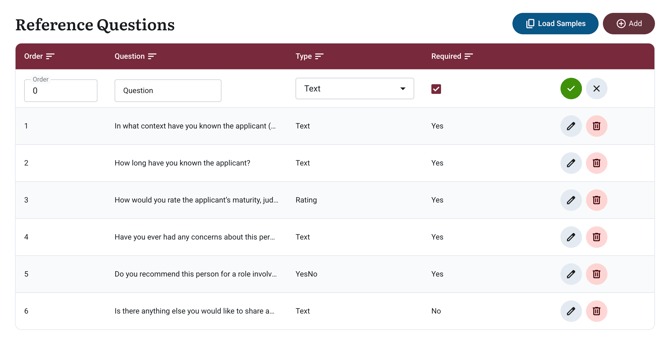
- From your Admin dashboard, go to Ref Questions in the left-hand navigation menu.
- Click the Add button in the top-right corner of the page.
- A new line will appear. Enter your question text in the Question field.
- Select a Type for the question (see Step 2 below) and set whether the question is Required.
- Click the checkmark to save. The question will appear immediately in the list and referees will see it the next time a reference request is sent.
2. Choose a question type
Each question has a Type that determines how the referee responds. There are three options:
Text
The referee types a free-text response. Best for open-ended questions such as "In what context have you known the applicant?" or "Is there anything else you would like to share?"
Rating
The referee selects a score on a scale. Best for questions that benefit from a consistent, comparable measure, such as "How would you rate the applicant's maturity, judgment, and reliability?"
Yes / No
The referee selects Yes or No. Best for clear, binary questions such as "Do you recommend this person for a role involving children or vulnerable adults?"
💡Tip
Use a mix of types for a well-rounded reference. A typical set might include Text questions for context, a Rating question for overall character, a Yes/No question for a direct recommendation, and a final optional Text question for anything else the referee wants to add.
3. Use the Load Samples option
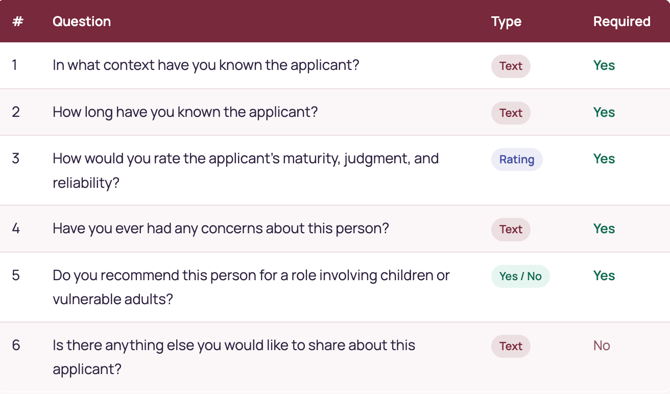
Safe Pathways provides six ready-to-use sample questions designed to gather the information most relevant for safeguarding screening. These cover relationship context, length of acquaintance, character assessment, concerns, a direct recommendation, and an open-ended closing question.
- Click the Load Samples button in the top-right corner of the Reference Questions page.
- The six default questions will populate immediately in the list.
- Review each question. Edit, delete, or reorder them to suit your church's needs.
⚠️ Heads up
Clicking Load Samples will replace any questions you have already created with the default set. Copy any custom questions you want to keep before loading samples.
The six Safe Pathways sample questions
These are the questions loaded when you click Load Samples:
Managing your questions
Once questions are in the list, you can edit, reorder, or delete them at any time.
Edit a question
- Click the edit pencil icon on the right side of the question row.
- Update the question text, type, or required setting.
- Confirm to save. The change takes effect immediately.
Reorder questions
The Order column shows the sequence referees will see. To change the order, number the questions in the order you would like them answered
Delete a question
- Click then delete icon on the right side of the question row.
- Confirm the deletion when prompted. This cannot be undone.
Frequently Asked Questions
Can I mark a question as 'optional'?
Yes. When adding or editing a question, toggle the Required field to No. Optional questions will still be shown to the referee, but they will not be required to answer before submitting the reference.
Will referees who have already submitted a reference see updated questions?
No. Changes to reference questions only apply to reference requests sent after the change is made. Already-submitted references are not affected and their answers are preserved as recorded.
How many reference questions can I add?
There is no set limit. However, we recommend keeping your question set concise, typically six to eight questions, so referees can complete the form without difficulty. A shorter, focused form tends to produce more thoughtful responses.
Can I customize the sample questions after loading them?
Yes. The sample questions are fully editable once loaded. You can change the wording, swap the type, toggle the required setting, add new questions, remove ones you don't need, or reorder them to match your church's reference process.
Can I have different reference questions for different ministry areas?
Currently, one set of reference questions applies across all ministry areas. If you need area-specific questions, we recommend including the ministry area context in your question wording (e.g., "How would you rate this person's suitability for a children's ministry role?").