
Summary
The Community page is your home base for finding people: search by name, narrow the list with filters and columns, and open anyone’s profile without losing your place. This article covers finding a volunteer, the filter and column options, what is inside a profile, and what an admin can change there.
Who this is for
- Church Administrators managing the volunteer list
- Account Owners
What you’ll need
Make sure you have:
- Admin access with permission to view members
- People in your account, added by import or invitation
Before you start
One thing to hold onto before you open anything: volunteer profiles hold personal information, including contact details and screening status. Open a profile when you have a reason to, and remember that what you change there becomes part of that volunteer’s record.
This article is the quick tour. For a deeper walk through every column and toggle, see Community: your church’s member list.
Steps to find and open a volunteer profile
1. Open Community
Select Community in the left menu of the Admin Dashboard. The page lists everyone in your account.
2. Search by name or email
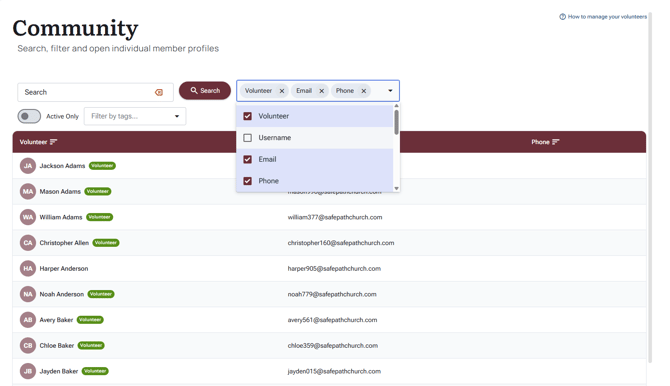
Type into the search box at the top left and select Search. The clear icon beside the box resets it.
3. Narrow the list with filters
The Active Only toggle (on by default) hides inactive accounts; turn it off when you are looking for someone who has not accepted their invitation yet. The “Filter by tags...” dropdown narrows the list to volunteers carrying a tag, and each applied tag shows as a chip you can remove.
4. Choose your columns
The “Show columns...” dropdown controls what the list displays. Alongside the volunteer’s name you can show Username, Email, Phone, Training, Tags, 6-Month, Ref 1, Ref 2, Policy Ack, At Risk, and Expired, so one glance answers most status questions without opening anyone’s profile.
5. Open the profile
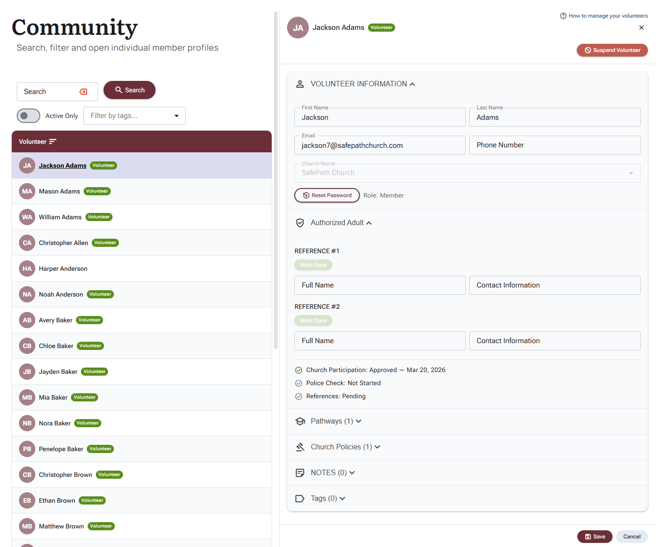
Select a volunteer's name. Their profile panel opens beside the list, so you keep your scroll position and filters. Badges on the row give you the headline: a green Volunteer badge for active volunteers with training assigned, and a red Suspended or Terminated badge if the account has been suspended or terminated.
6. Review and update what you need
The profile is organized into collapsible sections:
- Volunteer Information: first name, last name, email, and phone, plus Reset Password.
- Authorized Adult: the screening picture in one place, including church participation, both references, and the Police Check summary.
- Pathways: every assigned pathway and its completion status.
- Church Policy: which policies the volunteer has acknowledged.
- Notes: the volunteer’s notes record (admins only).
- Tags and Custom Requirements: labels and any extra checklist items your church tracks.
Make your changes, then select Save at the bottom of the panel. Cancel discards them, and closing the panel without saving loses unsaved edits.
What happens next
Saved changes take effect right away and flow into the volunteer's record. If your church is connected to Planning Center, identity fields (name, email, phone) are imported and read-only here; update them in Planning Center instead. Safe Pathways pushes status back to Planning Center automatically. See Planning Center: what syncs? for the details.
One button deserves respect: Terminate Volunteer asks you for a reason, takes effect immediately, and removes the volunteer from active service. Use it as your church's process directs, not as a quick filter.
Troubleshooting
I can’t find a volunteer I know is in the system
- Turn the Active Only toggle off. People who have not accepted their invitation may not appear in the default view.
- Clear the search box and any tag filters, then search again with just a last name.
- If they were never imported or invited, they are not in the list yet. Add them or run your import first.
The profile fields are greyed out
- Your church is connected to Planning Center, so identity details are read-only in Safe Pathways. Update them in Planning Center.
- Reset Password still works even when fields are read-only.
I can open profiles but can’t change anything
- Your admin role may not include permission to manage members. Ask your Account Owner to review your role.
The Training column is empty for someone
- No pathways are assigned yet. See Assigning pathways to volunteers to assign one.
Notes
- Community is the search, filter, and profile home for everyone in your account.
- The profile panel opens beside the list, so you never lose your place.
- Select Save before closing the panel; unsaved changes are lost.
- When Planning Center is connected, identity fields are read-only in Safe Pathways.
- Volunteer profiles are personal information: open what you need, when you need it.
- Terminate Volunteer takes effect immediately and asks for a reason.